
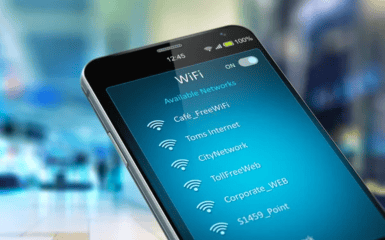
Bluetooth can affect Wi-Fi, but turning it off for faster internet is not always necessary. On most modern smartphones, laptops, tablets and routers, the simultaneous operation of Bluetooth headphones, a mouse, keyboard or watch does not create a noticeable drop in speed. Problems often occur when the device is connected to Wi-Fi in the 2.4 GHz range, there are many wireless devices nearby, the router is in a bad place, the channel is overloaded by neighbors or the signal passes through concrete, metal and several walls.
Points of attention
- The suspicion arises from shared range. 2.4 GHz Wi-Fi, Bluetooth, smart home components, older cordless phones, some cameras, baby monitors, and microwave ovens can all operate side by side in the same congested environment.
- Bluetooth should be turned off as a test or temporary solution if Wi-Fi is working poorly on 2.4 GHz and the problem disappears after turning off the headphones, mouse, or other Bluetooth device.
Bluetooth and Wi-Fi can indeed operate in the same 2.4 GHz radio band. The Bluetooth SIG explains that Bluetooth uses the same 2.4 GHz ISM band as Wi-Fi and IEEE 802.15.4-based technologies, so data packets can collide if multiple devices transmit simultaneously on nearby frequencies. But modern Bluetooth doesn’t “clog” the entire Wi-Fi airwaves all the time: it uses short bursts, frequency hopping, and adaptive channel selection to reduce signal collisions.
The main conclusion is simple: Bluetooth should be turned off as a test or temporary solution if Wi-Fi works poorly on 2.4 GHz and the problem disappears after turning off headphones, a mouse or other Bluetooth device. But for a stable result, it is more effective to switch to 5 or 6 GHz, change the 2.4 GHz channel, correctly position the router, remove sources of interference and check the real cause of the slow Internet.
Why is Bluetooth generally suspected of Wi-Fi problems?
The suspicion arises from the shared range. 2.4 GHz Wi-Fi, Bluetooth, smart home components, older cordless phones, some cameras, baby monitors, and microwave ovens can all operate side by side in the same congested environment. Apple's wireless interference help clearly states that both Bluetooth and Wi-Fi use 2.4 GHz, but many Wi-Fi devices can switch to 5 GHz; Apple also advises reducing the number of active devices in the same frequency range.
In practice, it looks like this: a person is sitting in an apartment, watching a video or participating in a video call, while simultaneously connected Bluetooth headphones, a mouse, a keyboard, a clock, a smart lamp, a speaker, and dozens of neighboring Wi-Fi networks are visible around. If the laptop is connected to 2.4 GHz, the delay, sound interruptions or speed drops may seem to be a consequence of Bluetooth. Sometimes this is indeed part of the problem, but not always the main one.
Microsoft explains that there are three main bands for home Wi-Fi: 2.4 GHz, 5 GHz, and 6 GHz. 2.4 GHz has better interference resistance and greater compatibility, but it has lower throughput, fewer non-overlapping channels, and is more likely to be congested, particularly by home devices and Bluetooth.
How Bluetooth avoids conflict with other devices
Bluetooth doesn't operate as a continuous stream of noise across the entire 2.4 GHz band. The technology divides the range into channels and constantly changes the transmission frequency. Bluetooth LE uses 40 channels in 2.4 GHz, while Bluetooth BR/EDR uses 80 channels; adaptive frequency hopping allows you to bypass busy or noisy channels.
The Bluetooth specification describes Adaptive Frequency Hopping: devices can reduce the number of channels in a piconet to avoid sources of interference, and channels are classified as usable or unusable. This doesn't make Bluetooth invisible to Wi-Fi, but it does explain why a single watch or mouse is rarely capable of bringing down an entire home network.
Problems often appear in complex scenarios: a cheap adapter in an old laptop, a weak router, a bad antenna, a device far from the access point, many neighboring networks, simultaneous sound in Bluetooth headphones, a video call, 2.4 GHz Wi-Fi and a USB 3 hub next to wireless receivers. In such a situation, turning off Bluetooth can have a noticeable effect, but the reason is still in an overloaded or incorrectly organized radio spectrum.

When turning off Bluetooth can really help
Disabling Bluetooth makes sense as a quick test. If after doing so, the Wi-Fi on your laptop or phone immediately becomes more stable, the sound in a video call stops dropping, and pages open faster, then the Bluetooth device or its location is involved in the problem.
This test is particularly appropriate if:
the device is connected to 2.4 GHz Wi-Fi;
Bluetooth headphones with a microphone are working nearby;
the problem only appears during video calls;
Wi-Fi deteriorates after connecting a mouse, keyboard, or speaker;
the router is far away or behind several walls;
there are many neighbor networks in the apartment;
the laptop is next to a USB hub, external drive, or docking station;
The problem is only on one device, and the others work fine.
Bluetooth headphones with a microphone can be more of a burden than a simple mouse, as they transmit audio in real time. But even in this case, the first solution is not to give up Bluetooth forever, but to check the Wi-Fi range, distance to the router, and sources of interference.
When Bluetooth is almost certainly not to blame
If your phone or laptop is connected to 5 GHz or 6 GHz, a regular Bluetooth device is much less likely to be the cause of slow Wi-Fi. In this case, Bluetooth operates at 2.4 GHz, and Wi-Fi is in a different band. The problems are more likely to be related to the provider, weak signal, a loaded router, an old tariff, a VPN, an overloaded server, background downloads, or a bad location of the access point.
Google explains that Nest Wifi Pro, Nest Wifi, and Google Wifi automatically direct devices to the band that is expected to provide the best performance; modern dual-band and tri-band devices can automatically choose between 2.4, 5, and 6 GHz based on compatibility, security, signal strength, and distance.
Bluetooth should not be considered the main culprit if:
slow internet is also available via Ethernet cable;
all devices at home work poorly at the same time;
speed drops only in the evening;
the problem disappears after rebooting the router;
Wi-Fi signal is weak in the far room;
the laptop works poorly even without Bluetooth accessories;
speed is low near the router;
the provider has an accident or overload;
The old router cannot cope with the number of devices.
In such cases, turning off Bluetooth may not make any difference, because the problem is not in the local radio channel between the headphones and the laptop.
2.4 GHz, 5 GHz and 6 GHz: which band to choose
The 2.4GHz band has longer range and better penetration through walls, so it’s often used by smart lights, outlets, sensors, older phones, printers, and inexpensive devices. The downside is slower speeds and more interference. Microsoft says that 2.4GHz is good for basic tasks like web browsing and email, but 5GHz is generally better for streaming video and gaming.
5 GHz typically offers faster speeds, lower latency, and more unobstructed channels. It's better for laptops, smartphones, TVs, consoles, video calls, gaming, and 4K streaming. The downside is poorer wall penetration and smaller coverage.
6GHz is available in Wi-Fi 6E and Wi-Fi 7. Microsoft describes 6GHz as a band with low congestion, more reliable connections, and lower latency, but with shorter range and the need for a new router and compatible device. For an apartment or home with modern technology, this is the best choice for fast devices near the router, but older gadgets don't support it.
Why switching to 5GHz is often better than turning off Bluetooth
If your laptop or phone supports 5GHz, switching to that band usually offers more benefits than turning off Bluetooth. The reason is simple: you're moving most of your internet traffic away from the congested 2.4GHz band, where Bluetooth, some smart home devices, and many neighborhood networks operate.
Apple notes in its Wi-Fi design guidelines that 5 GHz is better suited for Wi-Fi because microwave ovens, cordless phones, and many other devices share frequencies with 2.4 GHz; however, 2.4 GHz has channels that often overlap and cause interference.
Practical example: If your laptop is in the same room as your router but automatically connects to 2.4 GHz, you may experience slower speeds and higher latency. When you connect to 5 GHz, your Bluetooth mouse and headphones remain on 2.4 GHz, while your Wi-Fi traffic moves to a different band. This reduces conflict without sacrificing the convenience of your accessories.
How to understand which band the device is connected to
On Windows, you can check this in your Wi-Fi settings or through your network properties. Microsoft also recommends running a few speed tests in different parts of your home before making any changes, recording the results, and repeating the test after making any changes.
On a smartphone, the band is sometimes visible in the network settings or in the router app. Some mesh systems show whether a device is on 2.4, 5, or 6 GHz. Google notes in the help for Nest Wifi that you can see which band a wireless device is using in the Google Home app.
If your router has the same network name for all bands, your device can choose the frequency itself. This is convenient, but not always transparent. For diagnostics, it is sometimes useful to temporarily separate the network names: for example, Home_24, Home_5, and Home_6. Microsoft recommends using different network names for different bands so that you know exactly what your device is connected to.
What to do if you need 2.4 GHz
It’s impossible to completely abandon 2.4 GHz. Many smart home devices only support this band. Google notes that some smart home devices only work with 2.4 GHz and do not support 5 or 6 GHz. Thread also uses IEEE 802.15.4 in the 2.4 GHz spectrum, and Zigbee operates in unlicensed bands, including globally in 2.4 GHz.
If 2.4 GHz is needed, it must be configured carefully. The most important thing is the channel and channel width. Microsoft recommends choosing channels 1, 6, or 11 for 2.4 GHz, as they do not overlap, and if necessary, use a 20 MHz width instead of 40 MHz for a more reliable connection with older adapters. Apple also recommends using channels 1, 6, and 11 for 2.4 GHz to avoid co-channel and neighboring interference.
For 2.4 GHz it is better:
do not set the channel “at random”;
check the air download with a Wi-Fi analyzer;
use channels 1, 6 or 11;
avoid 40 MHz width in an apartment building;
do not hide the router in a closet;
do not place it near the microwave oven;
keep USB hubs and external drives away from wireless receivers;
leave 2.4 GHz for IoT, and move fast devices to 5 or 6 GHz.

Router location is often more important than Bluetooth
A bad location for your router can ruin your Wi-Fi more than headphones on. Metal, concrete, mirrors, thick walls, water, appliances, cabinets, aquariums, and corner placement all reduce signal quality. Apple rates metal as a very high potential obstacle, while concrete, plaster, and bulletproof glass are high potential obstacles.
Microsoft recommends placing the access point closer to the center of the house or room, higher if possible, not in a corner or under a table; you should also reduce the number of walls between the router and the device.
A rule of thumb: the router should “see” the space, not stand behind the TV, in a niche, behind the system unit, in a metal cabinet, or on the floor. If the apartment is large, it is better to use a mesh system or an additional access point with a cable connection, rather than trying to “push” the signal by turning off Bluetooth.
USB 3, Docking Stations and Cables: The Unobvious Cause of Problems
Sometimes Wi-Fi and Bluetooth performance is affected not by Bluetooth itself, but by other electronics nearby. Apple specifically warns that USB 3 or Thunderbolt 3 devices can interfere with wireless devices; to reduce the risk, use high-quality shielded cables, move USB hubs and storage devices away from wireless devices, and don't put USB 3 devices on your Mac.
Typical situation: a laptop is connected to a monitor via a docking station, and an external SSD, a USB hub, a mouse receiver, Bluetooth headphones, and a phone are nearby. The user turns off Bluetooth and sees an improvement, but the real reason may be the amount of interference near the laptop's antennas.
The solution is simple: physically separate the devices. Even 30–50 cm between the router, hub, wireless receiver, external drive, and headphones can give a better result than constantly manually turning off Bluetooth.
Will rebooting the router help?
Rebooting can help if the router has been working for a long time without restarting, has frozen, has chosen the wrong channel, or has accumulated errors. But this should not be the only way to treat the network. If after rebooting the speed increases for a few hours, and then drops again, the problem may be overheating, old firmware, overloaded with the number of clients, automatic channel selection, or weak router hardware.
Microsoft notes that many home routers have automatic channel selection: sometimes it works well, but sometimes it's better to manually select a channel for a particular home.
Useful actions:
update the router firmware;
check the 2.4 GHz channel;
check 5 GHz separately;
change the installation location;
remove overheating;
disable legacy modes if no one uses them;
view the number of connected clients;
Check if anyone is uploading large files.
replace the old router if it is not working.
How to properly check if Bluetooth is affecting Wi-Fi
You need to do more than just a random test, but a quick diagnostic. Otherwise, you might mistakenly blame Bluetooth for a provider issue or a weak signal.
Do this:
Stand next to the router.
Check your Wi-Fi speed with Bluetooth enabled.
Turn off Bluetooth and repeat the test.
Connect to 5 GHz and repeat the test.
Return to the problem room and repeat the measurement.
Check for lag in a video call or game.
Turn on your Bluetooth headset and repeat the scenario.
Check if the problem occurs on another phone or laptop.
If possible, check the internet via cable.
Record the results, not just judge by eye.
If the speed is also low via cable, Bluetooth is useless. If everything is fine on 5 GHz, but bad on 2.4 GHz, you need to configure 2.4 GHz or transfer important devices to a faster range. If the problem occurs only with specific Bluetooth headphones, you should update the firmware, check the codec, change your work location, or connect Wi-Fi to 5 GHz.
What's better to do instead of constantly turning off Bluetooth?
Constantly turning off Bluetooth is inconvenient. Headphones, watches, mice, keyboards, car systems, trackers, and other accessories stop working. It's better to eliminate the root of the problem.
The most effective steps:
switch your laptop, smartphone and TV to 5 GHz or 6 GHz;
leave 2.4 GHz for lamps, sensors, printers, and old devices;
change the 2.4 GHz channel to 1, 6, or 11;
put 2.4 GHz 20 MHz width in a dense house;
raise the router higher and closer to the center of the apartment;
do not place the router near a microwave, TV, or metal;
move USB 3 hubs and external drives away from the laptop;
update the Wi-Fi/Bluetooth driver on your laptop;
update the firmware of the router;
for a PC, TV or console, use Ethernet;
For a large apartment, consider a mesh system or an additional access point.
Microsoft explains that Wi-Fi 6, Wi-Fi 6E, and Wi-Fi 7 offer higher efficiency, capacity, and stability, and Wi-Fi 7 supports Multi-Link Operation, which is the ability to use multiple bands simultaneously to avoid congestion and maintain connectivity. If your router is old and operates mostly at 2.4 GHz, a hardware upgrade can do more than any minor tweaks.

Should you turn off Bluetooth on your phone to save battery and security?
For Wi-Fi speed, usually no. For privacy, security, or battery saving, sometimes yes, but that's another question. If you don't need Bluetooth, you can turn it off. This will reduce the number of active wireless interfaces and eliminate accidental connections to accessories. But you shouldn't expect a dramatic Wi-Fi speed boost on a modern phone, especially if it's connected to 5 or 6 GHz.
A sensible approach: At home or in the office, leave Bluetooth on if you're using headphones or a watch and the network is working fine. Turn it off during diagnostics, on the road, when accessories are not needed, or if a specific device is clearly causing problems.
Common user mistakes
The first mistake is to turn off Bluetooth and consider the problem solved. If the Wi-Fi is overloaded, an old router or a weak signal will still be a problem.
The second mistake is to keep all devices on 2.4 GHz. This band is needed for compatibility and range, but it is not the best choice for videos, games, large files, and video calls.
The third mistake is to put the router in a closet or behind the TV. Physical obstacles are often more important than the number of Bluetooth gadgets.
The fourth mistake is to use a 40 MHz width on 2.4 GHz in an apartment building. This can create more conflicts with neighboring networks.
The fifth mistake is not checking your cable internet. If the low speed comes from your provider, Bluetooth settings won't change anything.
The sixth mistake is to ignore USB hubs and cheap cables near your laptop. Apple specifically recommends keeping USB 3 and Thunderbolt 3 devices away from wireless devices and using high-quality shielded cables.
A quick checklist for fast Wi-Fi
If Wi-Fi is slow, follow these steps:
Check the speed near the router.
Check the speed via cable.
See if the device is connected to 2.4, 5, or 6 GHz.
For your laptop, phone, TV, and console, choose 5 or 6 GHz.
On 2.4 GHz, use channels 1, 6, or 11.
In a dense house, set 20 MHz for 2.4 GHz.
Move the router away from metal, TVs, and microwaves.
Lift the router higher.
Remove USB 3 hubs and external drives from the laptop's antennas.
Update your router firmware and drivers.
Turn off Bluetooth as a test, not as a first permanent solution.
If the problem is only in the far room, add a mesh or access point.
This order helps you not to guess, but to find the real reason.
Conclusion
Bluetooth can interfere with Wi-Fi, but mostly in specific conditions: when Wi-Fi operates in the 2.4 GHz band, the air is congested, the signal is weak, there are many wireless devices nearby, or there are sources of electromagnetic interference near the laptop. In modern technology, Bluetooth uses coexistence mechanisms, short packets, and adaptive frequency hopping, so a single turned-on accessory is rarely the main cause of slow Internet.
Turning off Bluetooth is worth it as a diagnostic step: we checked the speed with and without it, compared the results, and made a conclusion. If there is a difference, it is better not to live with Bluetooth permanently turned off, but to transfer important devices to 5 or 6 GHz, change the 2.4 GHz channel, rearrange the router, remove USB obstacles, and update the equipment.
The best way to improve Wi-Fi is not to look for one culprit device, but to configure the entire home network: the right range for each gadget, a cleaner channel, a normal router location, a stable signal, and sufficient performance of the router itself.
FAQ
Do I need to turn off Bluetooth to make Wi-Fi work faster?
Usually not. Turning off Bluetooth can help if your device is connected to 2.4 GHz Wi-Fi and the problem is indeed due to radio interference. But more often it is more effective to switch to 5 or 6 GHz, change the Wi-Fi channel, move the router, or remove other sources of interference.
Why can Bluetooth interfere with Wi-Fi?
Bluetooth and Wi-Fi can operate in the same 2.4 GHz band. The Bluetooth SIG explains that packets can become corrupted or lost if Bluetooth transmissions overlap in time and frequency with other devices in the same band.
Why doesn't Bluetooth always break Wi-Fi if they are in the same range?
Bluetooth uses frequency hopping, short bursts, and Adaptive Frequency Hopping. This mechanism helps to avoid busy and noisy 2.4 GHz channels, although it does not eliminate all possible interference.
Which is better for fast internet: 2.4 GHz or 5 GHz?
For speed, video, gaming, and video calling, 5GHz is usually better. 2.4GHz has longer range and better penetration through walls, but is more often congested and slower. Microsoft explicitly states that 5GHz is better for streaming and gaming, while 2.4GHz is better for basic tasks.
Will Wi-Fi 6E or Wi-Fi 7 help?
Yes, if both your router and your device support the standard. 6 GHz offers less congestion and lower latency at close range, and Wi-Fi 7 can use Multi-Link Operation to operate across multiple bands simultaneously.
Which channel should I choose for 2.4 GHz Wi-Fi?
For 2.4 GHz, it's best to start with channels 1, 6, or 11, as they don't overlap. Microsoft and Apple recommend using these channels for better reliability and less interference.
Why does Wi-Fi slow down when Bluetooth headphones are connected?
There are several possible reasons: the headphones and Wi-Fi are operating at 2.4 GHz, the router signal is weak, there are many neighboring networks nearby, the laptop has a weak adapter, or there are USB 3 devices nearby. First, check the 5 GHz connection, and then compare the speed with and without Bluetooth.
Does a microwave affect Wi-Fi?
Yes, it can affect 2.4 GHz. Apple lists microwave ovens, cordless phones, power cords, fluorescent lights, wireless video cameras, and other devices as common sources of interference.
Should Wi-Fi be divided into two names: 2.4 and 5 GHz?
For diagnostics and manual monitoring, yes. Microsoft recommends using different network names for different bands to help you understand which network a device is connected to. In mesh systems, a single name can be convenient, but sometimes it hides the actual band selection.
What to do if Wi-Fi became better after turning off Bluetooth?
This means that Bluetooth or the location of Bluetooth devices is affecting your specific configuration. Don't just turn it off: switch Wi-Fi to 5 GHz, change the 2.4 GHz channel, move headphones, USB hub or external drive away from your laptop, update drivers and check your router.

